
Tool guide
Voicing Trainer
Basic questions are public. Free adds core practice; Pro adds advanced exercise settings.
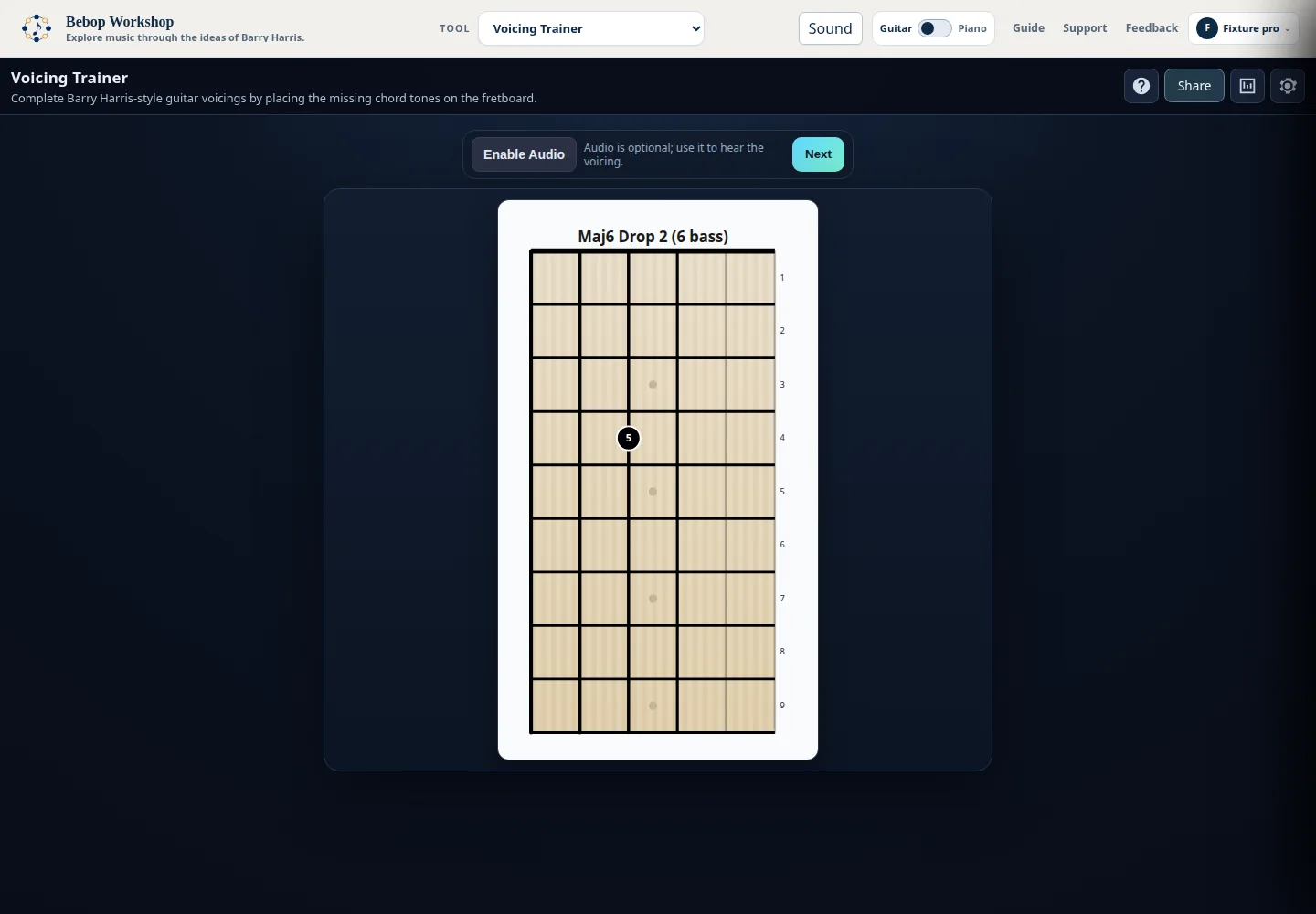
Voicing Trainer presents a Barry Harris scale-of-chords voicing with one tone shown. Complete the voicing on the selected guitar fretboard or piano keyboard, then use the feedback and statistics to see how you are doing.
Start a question
The trainer chooses a scale, voicing type, string set or source layout, and a displayed tone from your current settings.
- Open Settings and choose Guitar or Piano.
- Read the display header for the scale, voicing, and optional bass hint.
- Find the note already shown on the active instrument display.
- Click the remaining chord tones on the fretboard or keyboard.
- Use Next when you want to skip the current question.
- A correct completion gives visual feedback and advances to another question after a short pause.
- A wrong click is marked so you can correct it before completing the voicing.
Choose the instrument and controls
Guitar mode uses the six-string fretboard and labels active strings by their string set. Piano mode shows the keyboard range containing the voicing and uses source-voice wording for the display-note choices.
- The header buttons open Help, Statistics, and Settings.
- The Next button generates a new question from the saved settings.
- The shown note is the starting clue; clicking it again does not count as an answer.
- Settings are applied with Save, and closing the panel also saves the current selections.
Configure scales, voicings, and the clue
Settings lets you choose the scale families and the voicing and string-set combinations used for new questions. The source names are Major 6 Diminished, Minor 6 Diminished, Dominant 7 Diminished, and Dominant 7 b5 Diminished.
- Voicing choices include Drop 2, Drop 3, Drop 2+4, Triads, Thirds, Low Shell, and High Shell when available for the selected scale.
- Display note can be Random, Random (not bass), Lowest (bass), Smallest string or source voice, Second smallest, or Third smallest.
- Show bass hint adds the bass role to the header prompt.
- Volume ranges from 0 to 100 percent in the control.
Read the display and hear the voicing
The instrument display labels chord tones with roles such as R, 3, b3, 5, b5, 6, or b7. The header identifies the scale and voicing, and the optional bass hint identifies the bass role.
- Click Enable Audio the first time you want sound. This initializes the browser audio system after your gesture.
- After audio is ready, use the play control to hear the complete voicing.
- If the browser or audio system is unavailable, continue visually; audio is optional.
- A correct completion plays the completed voicing when audio is initialized and shows the completion animation.
- The trainer uses a bundled soundfont and may need a higher volume setting for a clear result.
Review and reset statistics
Statistics records completed questions in the browser for this trainer. The panel shows total questions, correct and incorrect counts, and accuracy.
- Breakdowns are available by scale, voicing type, and by scale, bass role, and string set.
- Only a completion with zero wrong clicks is recorded as correct; a completion after wrong clicks is recorded as incorrect.
- Reset All Stats clears the trainer statistics stored in this browser.
Saved choices and access
Your personal settings and statistics are saved in this browser. If your access changes, the tool keeps your saved choices and uses the choices currently available to you until the others return. The active question remains available while access is refreshed.
- Basic practice is available without signing in. Some core combinations require sign-in, and advanced settings may require Pro access.
- The tool labels choices with [FREE] or [PRO] when those labels apply.
- Changing an allowed setting does not discard choices that are temporarily unavailable; they remain saved for later.
Troubleshooting
If a question cannot be generated, open Settings and leave at least one scale and one voicing/string-set choice enabled. Some combinations are unavailable for a particular scale family.
- If there is no sound, click Enable Audio or Play, check the browser tab volume, and try again. You can continue without audio.
- If the fretboard or piano does not match your choice, close Settings after selecting the instrument and let the trainer generate the next question.
- If a choice is marked [PRO] or unavailable, the current question is preserved; follow the sign-in or upgrade prompt, or return to the starter Major 6 Diminished / Drop 2 exercise.