
Tool guide
JazzRep
Sign in to track repertoire. Pro adds personal tunes and listening links.
JazzRep help
Tag what you know, find what needs attention, and keep useful recordings beside each tune.
1 · Your home view
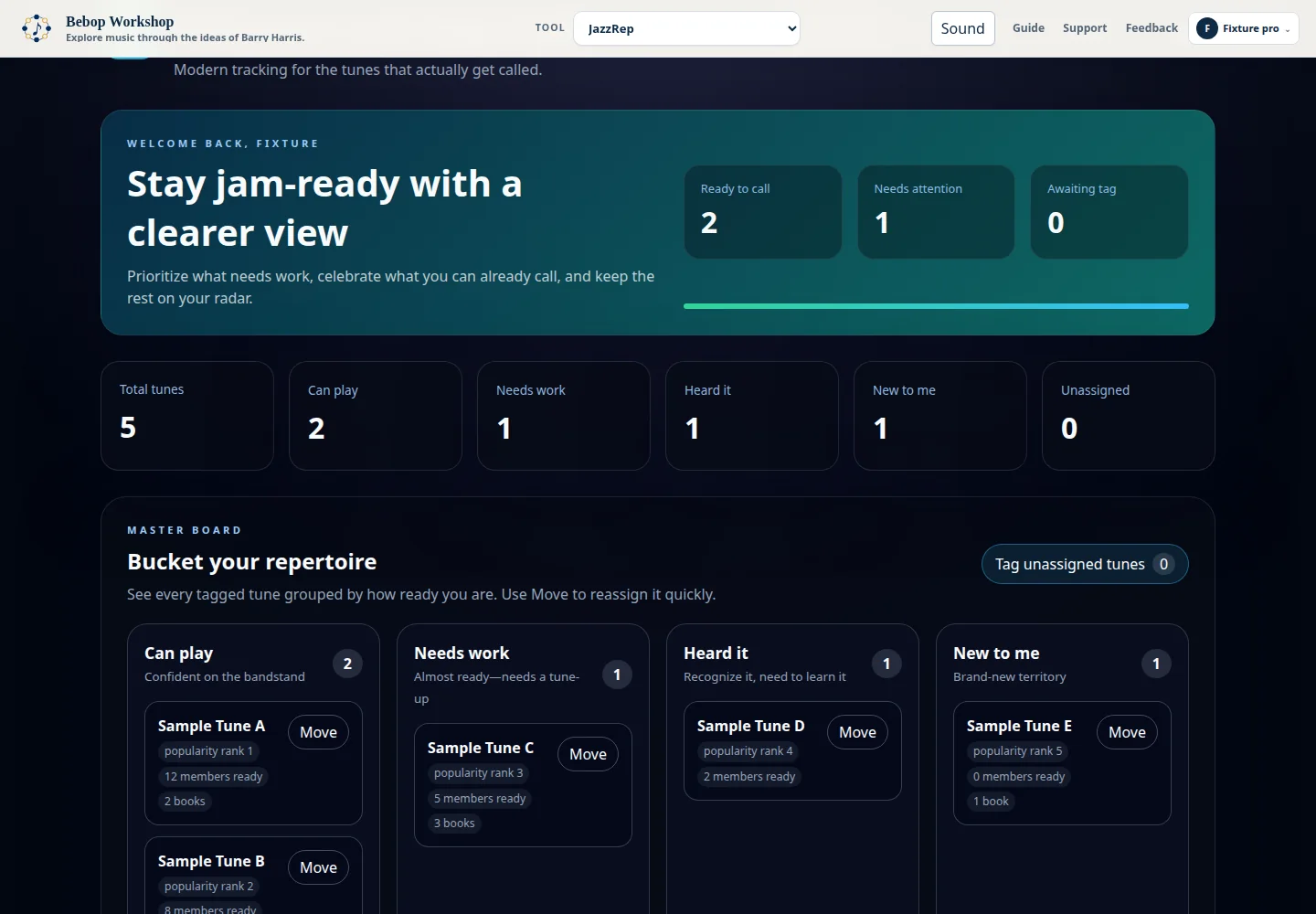
Use the Master Board
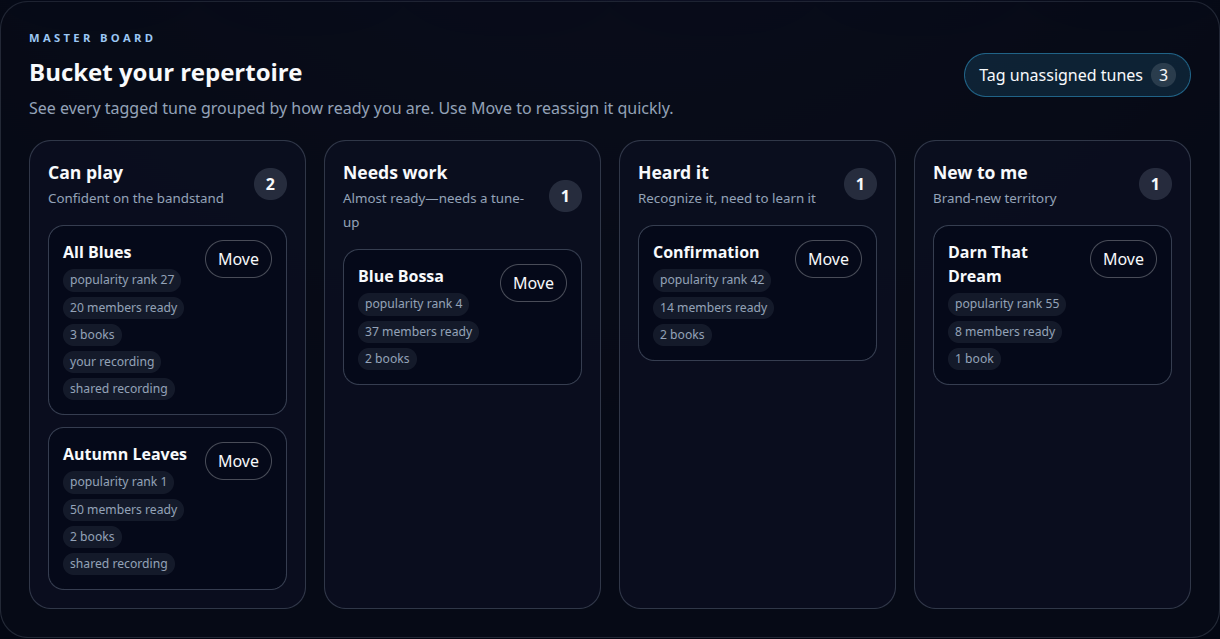
- Open Master Board to see every tune you have tagged.
- Use Move on any card to put the tune in a different bucket.
- Select a summary count at the top to jump to that bucket.
- Select a tune title to open its detail page.
2 · Clear the inbox
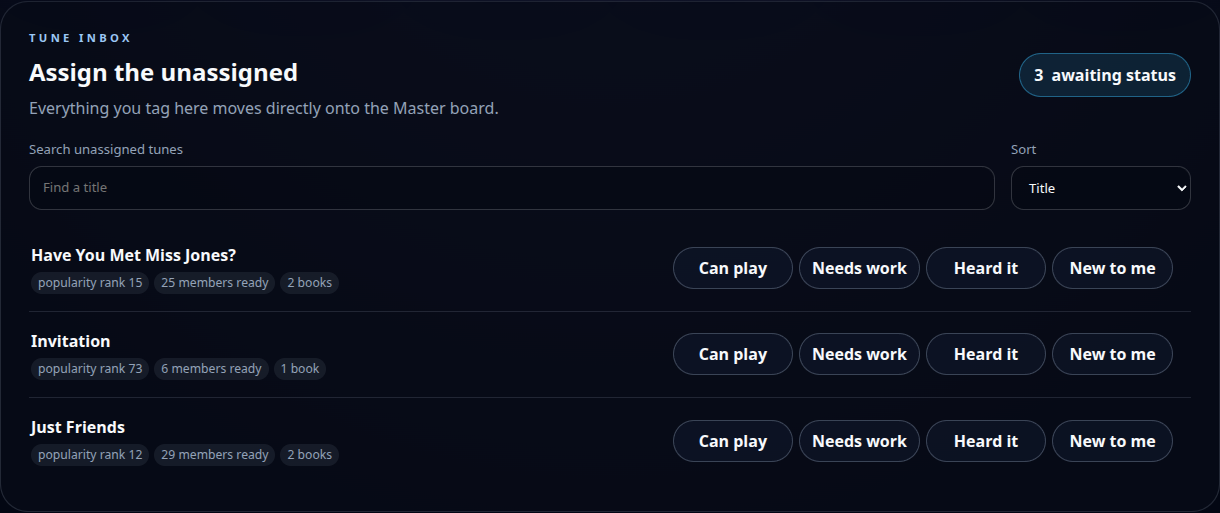
Tag unassigned tunes
- Open Unassigned from the top navigation or the Master Board button.
- Search or sort the list if you want to work in smaller batches.
- Choose Can play, Needs work, Heard it, or New to me.
- The tune immediately moves to that Master Board bucket.
You do not have to classify everything at once. Unassigned tunes remain available whenever you return.
3 · Tune details
Keep the useful context together
- Change your status at any time.
- Check which indexed books contain the tune.
- Save your own YouTube references privately.
- Use community references when they are available.
A personal tune and its saved links are visible only to your account.
4 · Listening references
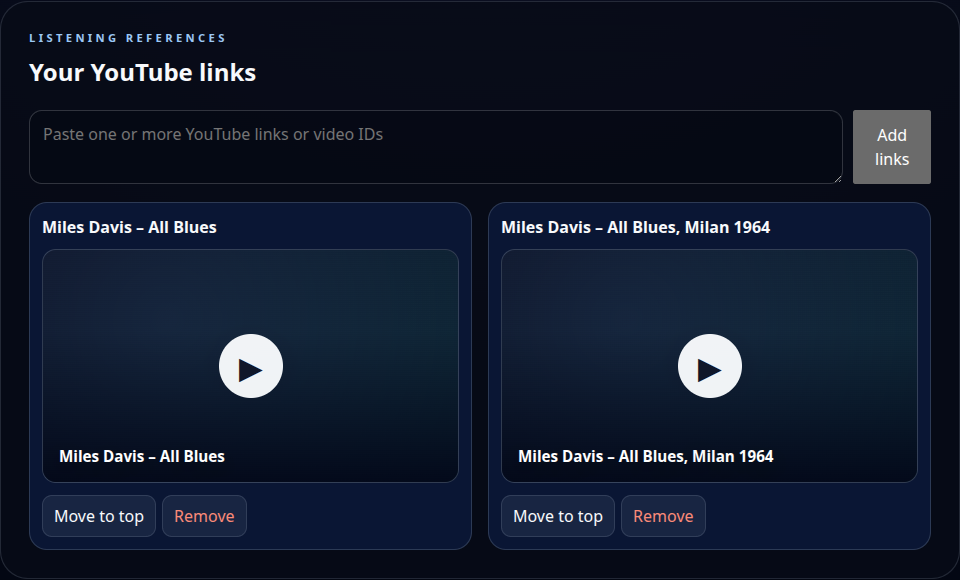
Add and play YouTube links
- Open a tune and paste one or more YouTube URLs or video IDs into Your YouTube links.
- Select Add links. Duplicate links are ignored.
- Select a video card to load it. JazzRep does not contact YouTube before you press Play.
- Starting another video stops and unloads the previous player.
- Use Move to top or Remove to manage your private list.
Optional helper
Ask your preferred chatbot for a paste block
Use a chatbot that can search the current web. JazzRep only needs the resulting YouTube URLs—never paste account details, private notes, or credentials into the chatbot.
What to paste into JazzRep
The chatbot should return a plain block like this:
https://www.youtube.com/watch?v=VIDEO_ID_1
https://www.youtube.com/watch?v=VIDEO_ID_2
https://youtu.be/VIDEO_ID_3
Copy that entire URL block into Your YouTube links and select Add links. Review the results before keeping them; search tools can occasionally return the wrong tune or an unavailable upload.
Made for your next session
Personal lists, sharing, and Excel
Open My lists to make a practice plan, save your jam favorites, or put a gig set in order. Choose New list, give it a name, then use Add tunes to select tunes from any readiness bucket. Use the arrows to arrange them. A tune can belong to several lists without changing its readiness.
Lists start private. Share shows exactly what visitors will see before you enable a link. Anyone with the link can read the title, description, and tune names without an account. Your email, other buckets, and listening links are not included. Later edits appear at the same link. Stop sharing makes it unavailable; copies someone has already downloaded remain with them.
Each bucket also has Share and Excel actions. Bucket shares automatically follow the tunes you move into or out of that bucket, including your personal tunes. Named lists keep the selection and order you choose.
Download Excel exports a real workbook. Download one list or bucket, or choose buckets from the Master board to get an overview and a worksheet for each. Unassigned tunes are optional. Shared-list downloads contain only the public tune names and order.
Personal lists, list and bucket sharing, and Excel downloads are available to every signed-in member, including Free. Adding new personal tune records or listening links still requires Pro. Duplicating a list creates a private copy. Deleting a list leaves your tunes and readiness untouched.