
Tool guide · Alpha · Experimental
Harmony Explorer
Sign in for the default study. Pro adds other studies and authoring.
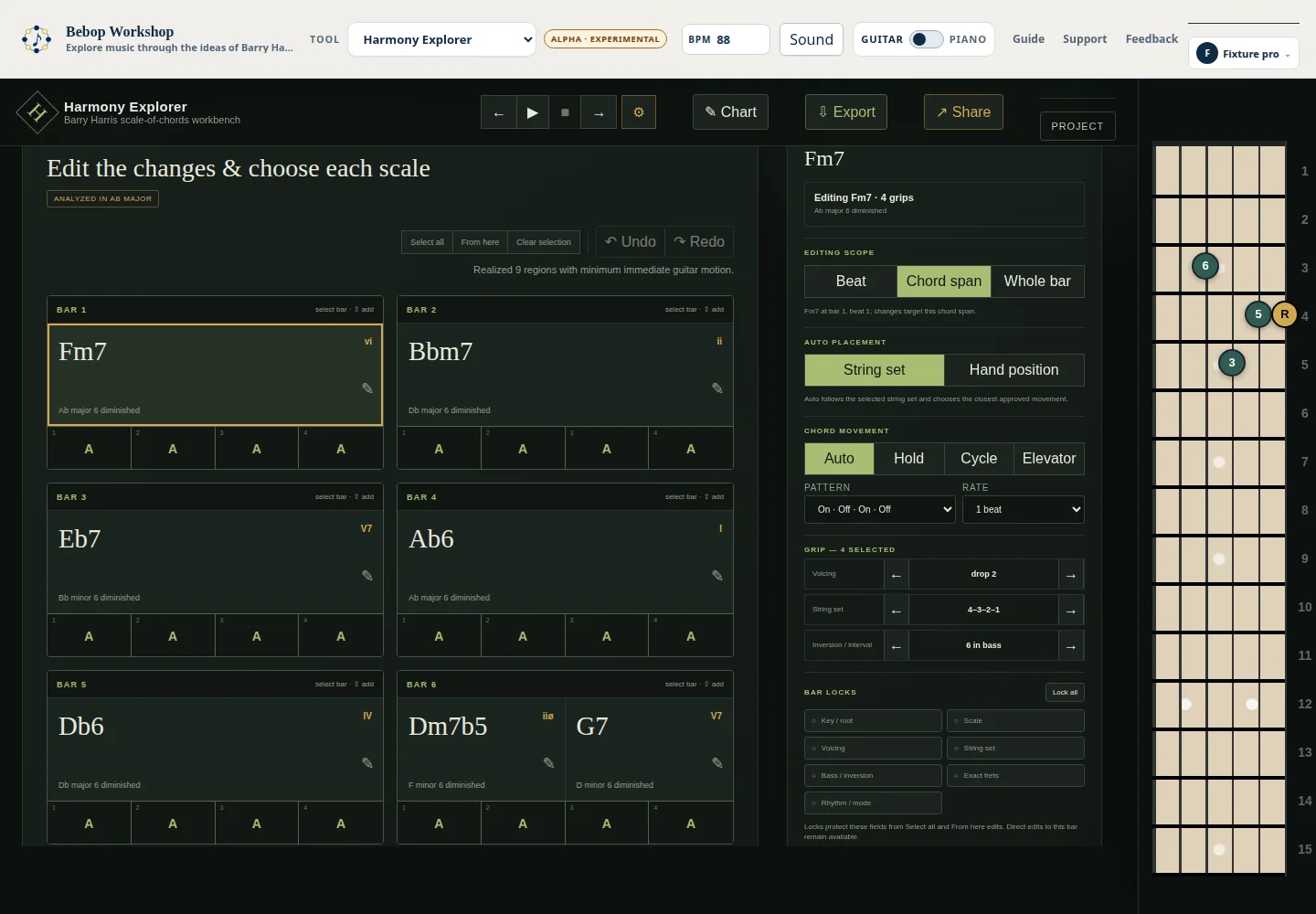
Harmony Explorer is an Alpha · Experimental Barry Harris scale-of-chords workbench. Enter a chord progression, choose a scale and guitar voicing, inspect the four-beat harmonic map, and edit the guitar grips with exact notation and TAB.
Open the default study or build a chart
The site opens with a supplied Harmony study after sign-in. For your own work, open Chart in the top bar, enter chord symbols in the progression box, choose Home key and Voicing, and select Build map. Bars use |, chords in a bar are separated by spaces, and % repeats the previous bar. Movement and Roman-numeral helpers can append or replace a chart with a cataloged example.
The map divides each four-beat bar among its written chords. Build map adds scale-of-chords choices, guitar voicings, fret positions, notation, and TAB to the progression.
- Select Chart and enter a short progression such as the supplied study.
- Choose a Home key and Voicing.
- Select Build map and wait for the voicings and score to appear.
- Click a bar, chord span, or beat to open its contextual editing palette.
Select the timeline at the right scope
The Harmonic Map is a clickable timeline. Select a Beat for one onset, a Chord span for the written chord span, or Whole bar for every chord span in that bar. A split bar exposes a Chord-span anchor when the whole-bar selection needs one anchor. Shift-click can add selections; Select all, From here, and Clear selection manage bulk targets.
The structure menu can split a span in half, split a full bar into four beats, insert or duplicate a chord, delete a chord, move or duplicate a bar, insert a bar, or delete a bar. Undo and Redo are available above the map and also use Ctrl/Cmd+Z and Ctrl/Cmd+Shift+Z when focus is outside an input.
Choose scales and movement
Each chord shows its selected scale-of-chords family and root. Use the chord and scale labels in the map to edit those choices. On a selected chord, the harmonic inspector can show the analyzed local center, Roman numeral, function, confidence, and a detected movement; Explore selected harmony opens the visualization when the inspector is available.
The contextual palette provides Auto placement by String set or Hand position. Chord-span and Whole-bar selections also provide Auto, Hold, Cycle, and Elevator movement. Cycle exposes pattern, rate, direction, turn policy, and fret limits; Elevator exposes start voicing, floor count, bass direction, and rate.
- String set follows the selected string set and chooses the closest approved movement.
- Hand position chooses an approved grip on the same or an adjacent string set and follows the current scale fingering pattern.
- Elevator moves the bass in the selected direction while the top voice moves contrary, then restarts from the exact first grip.
Edit grips, locks, and borrowed voices
Select a chord in the map to use the Grip controls. Previous and Next voicing, String set, and Inversion / interval buttons choose the closest approved variant; on a beat selection, Return this beat to Auto removes that manual movement override. Apply revoice from current grip applies the selected anchor to the selected scope, while Set selected to Auto removes authored grips and movement within that scope.
Bar locks protect scale root, scale family, voicing, string set, inversion, position, or movement from Select all and From here edits. Direct edits to the bar remain available. On supported harmony families, the fretboard and palette can borrow individual voices: keep a voice Home, choose Scale up, Scale down, or a chromatic half step down. Unselected voices stay exact, and later onsets remain as authored.
Read the fretboard, notation, and TAB
The docked fretboard shows the selected chord’s strings and fret positions. The Notation & exact TAB panel follows the same selection and playback position; when playback is stopped it reports Transport stopped, and while playing it identifies the current event, chord, bar, and beat.
Changing a grip from the palette, clicking a fretboard interaction, or choosing an approved movement updates the notation and TAB. Locked choices remain unchanged when you edit several chords together.
Play, loop, and change tempo
The top transport has Previous realized event, Play or Resume, Pause, Stop, and Next realized event. Space starts or pauses playback when focus is outside a control; [ and ] step to the previous or next realized event. The playback settings dialog opens from the gear button.
Practice settings include Instrument, Instrument volume, Count-in, Metronome, Ride bell volume, Loop, Loop range, Tempo ramp, Bass-position ramp, and Seeded variation. On the site, edit the starting BPM in the top header; it accepts 40–240 and supplies the starting tempo for a tempo ramp. Target BPM, increment, and repetitions remain in the ramp settings. A variation can be previewed, committed, or discarded; manual scale choices, locked grips, and authored movement events stay pinned.
- Select Play in the top transport after the voicings appear.
- Open playback settings to choose an instrument, count-in, metronome, or loop range.
- Use the map or fretboard cursor to inspect the event currently sounding.
- Stop before changing a large selection or movement range.
Access and experimental status
Keep the Alpha · Experimental label in mind: the tool is under active development. On the site, the supplied Harmony study is the default study available with the site's Free access path after sign-in. Creating and editing your own studies is marked [PRO]. A shared exact example can be played and traversed under its existing access rules, but it does not unlock chart authoring, generation, project saving, or other restricted actions.
If an action is gated, the status area explains the required access and offers the current sign-in or access action. The app preserves the working example and retained choices while it shows a usable setup for the current account.
Troubleshoot chart, sound, and links
If Build map reports an invalid progression, check bar separators, chord spacing, and the supported chart syntax. If the voicings have not appeared, select a chord and wait for the score to finish loading before editing or playing. For a rejected edit, the app restores the previous valid timeline and reports the rejection in the status area.
If there is no sound, open playback settings, confirm the instrument and volume, and press Play once so the browser can start audio. Stop playback before retrying a change. If a full or short link fails, copy the complete URL again, check that it was not truncated, and use Export JSON as the lossless fallback.