
Tool guide · Experimental alpha
Blues Explorer
Open to everyone in B♭. Sign in for every key and all features during alpha.
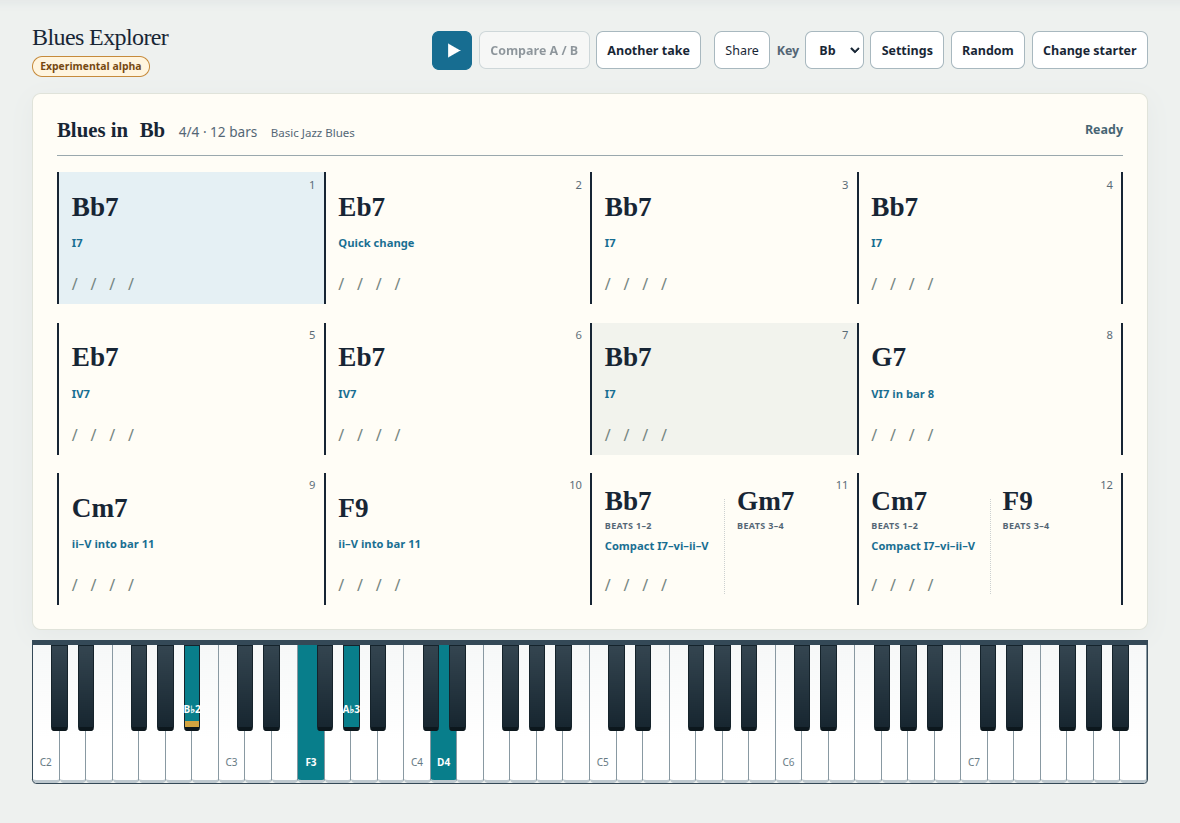
Build a twelve-bar blues, explore chord substitutions and comping, and hear each change in context.
Start with a twelve-bar blues
Blues Explorer is an experimental workspace for hearing and editing twelve-bar blues harmony. Musical and playback mistakes may occur; use your ears and report examples that need attention.
- Choose a key, then press Play to hear the current chorus with bass and comping. The same button stops playback, including while sounds are loading.
- Choose Change starter to preview a complete chorus. Listen if you wish, then choose Use this starter.
- Choose Random for a different combination of harmonic routes. It does not start playback. Random avoids ending-only routes and tonic-only final bars; manual ending choices remain available.
Alpha access: B-flat and every key
Everyone can explore and generate in B♭ without signing in. A free account unlocks every key and all features during the alpha. Some features may require Pro after alpha; no additional Pro gates apply now.
A shared example in another key remains available to view and hear without signing in. Sign in to edit or generate in that key, or select B♭ to keep exploring anonymously. Shared links never grant account privileges.
Personal key choices are retained when you sign out; anonymous exploration uses B♭. Signing back in restores your retained key without losing later tempo or display changes.
Read and select the chart
The chart shows written chord names, bar numbers and short descriptions of the harmonic routes. Where a bar contains more than one chord, beat labels show the actual durations. Equal visual halves do not necessarily mean equal musical durations.
Select a chord or bar to open Edit the music. The numbered buttons at the top move between bars; the chord-region buttons select the part of the bar you are editing.
Try changes, then apply your draft
Closing the editor keeps an unfinished draft available. Below the chart, Apply draft, Change preview and Discard draft let you finish, reopen or discard it.
Undo and Redo are beside Close at the top of the editor. While editing a draft they step through draft changes. After Apply, Undo restores the entire previous committed chart.
Discard bar changes restores just the selected bar to its state before the draft, keeping changes in other bars.
- Select a chord choice to preview it in the draft. Use the Chords tab for written harmony and the Comping tab for its sounding treatment.
- Use Listen in context to hear your work. Stop ends the audition.
- Keep editing other bars as needed. Apply commits the draft; Discard draft restores its starting state.
Change chords, colors and half-bars
Choose Split bar to edit beats 1–2 and 3–4 independently. Select the half you want before choosing its chord or comping. The whole-bar action uses the selected chord for the whole bar.
The current dominant chord has a Dominant color menu for choices such as 9, 13, altered ninths and altered fifths. Color changes preserve the region’s timing.
If a two-region preset has uneven durations, choosing a different basic chord converts the bar to two equal two-beat regions. Simply opening a preset does not change its timing.
Explore comping
The Comping tab changes the sounding treatment while retaining the written chord and its bass function. Choose related material, a family and root, then try a static, ascending or descending movement and a beat pattern.
Major-sixth, minor-sixth, dominant-seventh and dominant-flat-five families provide related chord and diminished material. Special and combined presets offer additional named movements.
Listen before applying. These are generated realizations for experimentation; a route label does not certify every custom combination as a reviewed performance.
Playback, sound and tempo
Play hears one chorus. Another take changes the realized performance without changing the written harmony. Compare A / B plays the previous version followed by the current version when a comparison is available.
Tempo in the site header controls this app’s BPM, from 40 to 240. Changing tempo stops active playback.
Sound controls bass, comping and metronome voices and levels. Blues Explorer starts with a Ride bell metronome at 15% unless you have saved another setting. Set metronome volume to 0 to mute it. Its metronome settings stay specific to Blues Explorer.
Use guitar or piano
Use the site header’s guitar/piano selector or Settings beside Key. Settings also offers vertical or horizontal guitar layout and buttons to inspect sounding comp events.
The instrument follows the selected region and playback. The vertical guitar sits beside the chart and hides while the editor is open. Piano and horizontal guitar sit below the chart.
Report an alpha problem
If playback is silent, check Sound levels and wait for the instrument samples to load, then press Play again. Stop cancels pending playback.
For a musical or editing problem, apply the example and copy its setup link. In Support, include the link, the bar and beat, what you expected, and what you heard or saw. Include your browser and guitar/piano mode for display problems.